
Is your computer running hot? Finding the best laptop cooling pads is the smartest way to stop overheating from destroying your expensive gear. Don’t let scorching temperatures ruin your intense gaming sessions or slow down your work. By boosting airflow, you can prevent lag and protect your device’s performance instantly. We tested the market’s top options to find the perfect match for your setup. Let’s explore the coolest choices available right now.
Top 5 Laptop Cooling Pads:
1. llano V12 Laptop Cooler – Best Laptop Cooling Pad Overall

This pad is like the ground crew for your laptop if it sounds like a jet taking off. No more frame drops or screen flickering thanks to the llano V12’s 14 cm turbo booster fan, which it plugs with foam and then blasts with 360-degree airflow to quickly lower temperatures. In addition to calming, adjustable RGB, you get a sleek light bar with ten modes and over four color groups, an RGB key that you can touch, and a memory function that lets you bring back your preferred glow with each power on.
Using the controllers is a delight. You may adjust the level of silence and brightness with the touch of a button, and an HD LED screen indicates the current fan speed and lighting conditions in real time. Immediate need for silence? Avoid fiddling with the controls mid-match by tapping off the bottom touch-mute button with one finger.
Desks in the real world, not in a showroom, are its intended use. Keep all of your peripherals connected without taking up valuable port space with the 1-in-3-out USB hub. The laptop is kept firmly on a tilt by two non-slip baffles, and your neck can forgive yesterday’s marathon session thanks to the adjustable height. Its Acrylonitrile Butadiene Styrene build makes it durable yet lightweight, and its 1.8 kg weight ensures it remains firmly in place even in the thick of the action.
This one packs 36 W of cooling power, which is important. Start those taxing renderings or all-night raids with confidence knowing that the V12 will keep your PC cool and your mind focused on the prize.
2. Razer HyperBoost – Best Laptop Cooling Pad for Gaming

This pad is for your ground crew if your laptop makes a noise like an airplane whenever you start a game. By utilizing clever cooling, Razer HyperBoost ensures that your CPU and GPU can handle greater power restrictions without crashing in the middle of a match. A long-life 140 mm brushless fan can go into overdrive at 3000 RPM when things are hot and quiet down when they’re not, thanks to an airtight pressure chamber and foam seals that prevent cold air from leaking.
There is a combination of brains and muscle: Razer Synapse allows you to fine-tune defaults or create custom curves to balance noise with temperatures, while Smart Cooling automatically adjusts fan speeds from idle to full send. Donning a 14-inch ultrabook one day and an 18-inch monster the next? For all sizes of rigs, you’ve got three magnetic frames that you can swap out to direct airflow precisely where it’s needed.
Benefits to quality of life? A lot. Your webcam, controller, and drawing tablet won’t have to play musical chairs thanks to a 3-port USB Type-A hub.Because alt-tabbing is for spreadsheets and not boss fights, remappable multi-function buttons let you to alter fan speed, toggle Razer Chroma RGB, adjust volume, and even launch programs on the fly.
Weighing in at 2.61 kg, this sturdy plastic anchor secures your setup without taking up too much room on your desk. Put it down, turn it on, and you’ll have smoother frames, cooler surfaces, and less thermal throttling surprises. You play harder, and your laptop breathes easier.
3. KLIM Wind – Best Laptop Cooling Pad for Big Laptops

The KLIM Wind dock is perfect for those whose laptops are more like battleships than ultrabooks. The wide and stable platform is ideal for 17, 18, and 19 inch rigs, even if they protrude over the sides. The front pegs ensure that everything stays put, and the rear lift-legs provide a comfortable slope. Superb control with zero wobble and zero sliding.
Throttling stops happening and your frames, timelines, and render bars act normally because four silent fans spin at 1200 RPM, inundating your chassis with airflow and rapidly lowering temperatures. The coverage reaches all the typical hotspots in less than a minute, so heat pockets have no chance.
You’re also not carrying a heavy brick. From your workplace to the couch to LAN night, you won’t feel a thing thanks to the build’s durability and lightweight design. Subtle coolness never goes out of style, and this pad looks better than the majority of “gamer” pads.For all your port needs, KLIM has left you with an extra port. Even with the pad plugged in, you can still use your mouse, microphone, or capture stick thanks to the two-port passthrough. Get that old laptop out of its heat rut, or fire up some marathon gaming. You can also use it to churn through photo batches.
Plus, it’s compatible with consoles, so you can put a PS4 or Xbox One on top and make those vents work more.Large laptop, minimal hassle. Whether your projects or boss fights get heated, this cooler will keep up with them thanks to its stability, smart ergonomics, and serious airflow.
4. Havit HV-F2056 – Best Slim & Lightweight Laptop Cooling Pad
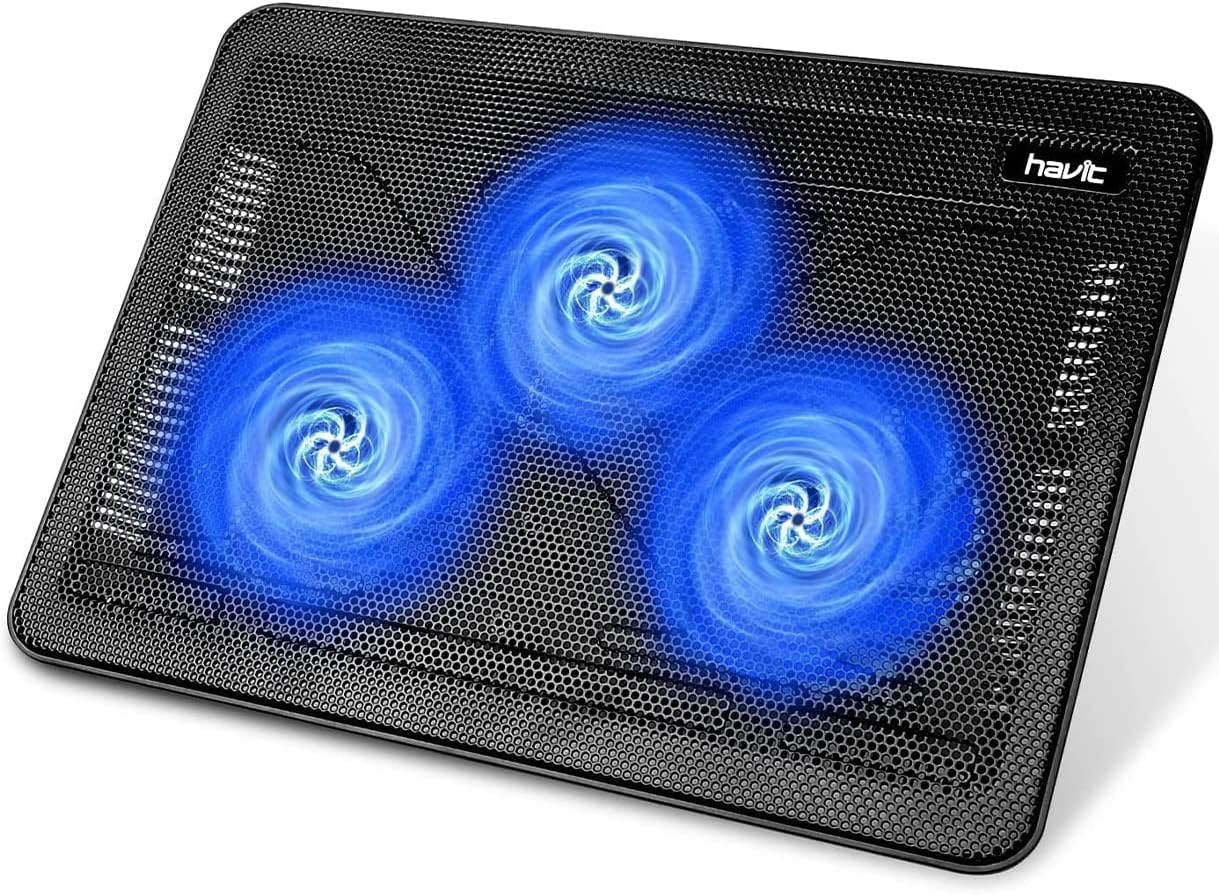
Keep things cool without adding bulk with the Havit HV-F2056, a cooler that’s as portable as your laptop. With a sleek Acrylonitrile Butadiene Styrene frame and a weight of about 1.54 pounds, it fits like a glove in your bag or pocket. Your CPU will no longer behave like it’s in a sauna thanks to three whisper-quiet fans that consistently push airflow across a sturdy metal mesh, eliminating hotspots.
During lengthy sessions, comfort is paramount. To alleviate strain on your neck and wrists, put it into stand mode and select one of two height settings to elevate your screen, allowing air to circulate more freely. No matter how much you cram, code, or are trying to meet a last-minute deadline, your laptop will be safe on the mesh surface because it is not only breathable but also durable and stable.
Those ports are still yours. Stay connected with your mouse, mic, or dongle with the built-in dual-USB hub. Control the fan speed with the dedicated power button. Without any unnecessary noise, guilt about the battery, or hassle.Whether you’re at your workplace, on the sofa, at the airport gate, or in a café corner, the HV-F2056 is a portable update that will keep your laptop cooler, quieter, and more pleasant to use. It’s lightweight, has a low profile, and is actually useful. Place it in, turn it on, and allow your concentration, not your temperature, to soar.
5. Kootek Chill Mat 5 – Best Budget Laptop Cooling Pad

The Kootek Chill Mat 5 is the way to go if you’re looking for an affordable cooler that does more than simply talk a good game. Deadlines, dungeon runs, and drama binges will all remain blissfully noise-free thanks to the tranquil, whisper-quiet airflow. Five fans operate together under the robust metal-mesh deck: a 4.72-inch main fan and four 2.76-inch auxiliary fans, all of which light up a soothing blue to make your system appear composed even when your CPU isn’t.
At all times, you have command. Just flip a switch to operate one fan, four fans, or all five at once in the event of a temperature surge. To alleviate heat, throttling, and sweaty palms all at once, the mesh distributes airflow uniformly throughout your laptop.Is it necessary to have ports? Not a problem. Without taking up a valuable laptop slot, the built-in dual USB hub keeps your essentials plugged in: mouse, mic, card reader. The stand has six height options to accommodate different users’ needs, and it also functions as an ergonomic riser. Find the sweet spot that will save your neck whether you’re editing for hours, raiding late at night, or giving consecutive lectures.
With a weight of approximately 1.16 kg, it is both sturdy and portable. “Less fan noise” is self-care, so give it as a present for Father’s Day or send it to a friend whose kids are starting school. Calm, peaceful, linked, and kind on your posture—all without destroying your bank account.
Things to Consider Before Buying a Laptop Cooling Pad:
Laptop cooling pads can improve your system’s performance and lifespan, so you should evaluate fan placement and speed, noise levels, pad size and compatibility with your laptop’s vents, power options, airflow design, build quality, ergonomics and portability, additional features like adjustable height or monitoring, and warranty coverage before purchasing.
Active Cooling Pads
If you run games or heavy photo/video work, active pads with 1-3 large fans (100-140mm) deliver 30-60 CFM each and can cut sustained CPU/GPU temps by 5-12°C in benchmarks; you’ll trade extra weight and 20-35 dBA noise for consistent airflow, and you should check USB power draw (often 0.5-1.0 A) and fan control options before buying.
Passive Cooling Pads
For light editing, browsing, or office work, passive pads use aluminum decks or heat pipes to spread heat across a wider area, typically lowering chassis temps by 1-5°C while adding minimal weight and zero noise, so you get better lap comfort and portability without relying on fans or USB power.
Materials matter: thick anodized aluminum offers higher thermal conductivity than plastic, and full-contact designs that match your laptop’s vent layout transfer heat more effectively; you should check pad angle (5-15°), surface contact area, and whether thermal pads align with your laptop’s hot zones. This makes passive pads a smart choice for quiet, mobile setups but less effective under prolonged high-TDP loads.
Laptop Size Compatibility
You must match pad platform dimensions to your laptop diagonal: common laptop sizes are 13.3″, 14″, 15.6″, and 17.3″; most pads state compatibility “up to 17.3-inch.” Measure your laptop’s base width (often ~300-400 mm for 15.6″) and check pad clearance for rear vents and hinge angles so fans sit over CPU/GPU hotspots and the chassis rests securely without overhang.
Cooling Efficiency
Compare fan count, fan diameter (80-140 mm), and advertised airflow or RPM-higher RPM (1,500-3,500) typically yields better heat transfer but more noise; in many tests dual large fans reduce surface temps by roughly 5-10°C versus passive stands, so prioritize models with adjustable speed and focused airflow over raw aesthetics.
For deeper assessment, inspect fan layout (centered for GPUs, rear-focused for gaming laptops), airflow metrics if provided (CFM or m³/h), and whether the pad uses metal plates or heat pipes to spread heat; you should also note power draw (single USB 5V supply vs. dual-port) and test noise at different speeds-expect ~25-40 dB for usable performance-and prefer PWM or stepped controls so you can tune cooling versus acoustics during heavy rendering or long gaming sessions.
Advantages of Using a Cooling Pad
You often see measurable temperature drops-typically 5-15°C-when you use a quality cooling pad, which reduces thermal throttling during long gaming or rendering sessions; that translates into steadier frame rates and fewer CPU frequency drops. You also get an adjustable viewing angle for better ergonomics, and features like extra USB ports or PWM-controlled fans let you balance cooling versus noise to match your workflow.
Disadvantages to Consider
You should expect trade-offs: noise can range from inaudible to over 40 dBA on cheaper units, the pad adds 300-800 g and desk clutter, and many designs fail to align with your laptop’s intake vents, producing minimal benefit. You’ll also use a USB port and may pay for a high-quality model.
Delving deeper, you’ll find that effectiveness depends on fan placement, RPM and your laptop’s chassis design; mid- and rear-vented systems see the most gain, while unibody or top-vent machines often show only 1-3°C improvement. Maintenance matters too-fans collect dust, reducing airflow by 10-30% over months-so you’ll need occasional cleaning or fan replacement. If silence is important, prioritize passive pads or low-RPM PWM fans and check measured noise levels before buying.
Material Quality
Aluminum tops and steel mesh improve heat transfer and rigidity, and you’ll see many reviews report 2-6°C lower surface temps versus ABS plastic; expect plastic pads to be lighter (300-600 g) but less effective for prolonged heavy loads, while metal designs often cost 10-30% more yet provide better long-term thermal performance and durability.
Design and Ergonomics
You should prioritize adjustable tilt-common ranges are 5-20°-to reduce wrist strain and improve airflow; also note pad height (20-120 mm) affects typing angle and cooling efficiency, and look for stable rubber feet, cable management, and compatibility with your laptop’s footprint (11-17″ models are typical).
Fan placement matters: central fans suit thin ultrabooks, while multiple off-center fans cover gaming laptops’ hot spots (CPU/GPU); pay attention to weight (300-900 g) if you travel, and consider a dual-mode pad with angled stand for typing plus flat mode for lap use-brands like Cooler Master and Thermaltake often document measured CFM and noise levels in product specs.
Assessing Your Needs
You should match the pad to your laptop size (13-17″) and workload: gaming or 45W+ rendering rigs demand higher airflow (30-50 CFM) and larger fans (120-140 mm), while casual use favors slim, lightweight pads. Also weigh portability (400-900 g), power source (USB bus-powered vs AC), and preferred tilt (5-15°) so your choice balances cooling performance with ergonomics and battery/pass-through needs.
How do cooling pads work?
Placed under your laptop, cooling pads use active fans or passive metal bases to pull heat away from the chassis. Fans (typically 1-5 units spinning around 800-2,000 RPM) boost airflow across intake vents, increasing CFM and lowering surface temperatures; some models add heat pipes or Peltier elements for extra transfer. You control speed via USB or onboard controls, and a raised angle improves convective flow so your internal fans can run quieter or less often.
Do cooling pads really make a difference
That depends on your machine and workload: gaming and workstation laptops with cramped internals often see temperature drops of roughly 3-8°C and less CPU/GPU throttling, while thin ultrabooks with efficient cooling gain little. If you run prolonged heavy loads, a pad can stabilize clock speeds and maintain performance; for casual browsing or office tasks the benefit is minimal. Expect trade-offs like added noise (about 20-35 dB) and a small USB power draw.
Practical results hinge on design and placement: pads that align fans with your laptop’s intake vents-for example, dual 120mm or multiple smaller fans-deliver better core temp reductions and can yield 5-15% improved sustained FPS in some gaming tests. You should check airflow (CFM), fan speed, and surface material-aluminum spreads heat, rubber feet lift the chassis-and remember pads won’t fix clogged heatsinks or poor internal thermal layouts, so periodic internal cleaning remains important.
Summing up
As a reminder, before buying a laptop cooling pad you should match pad size and elevation to your laptop and ergonomics, balance airflow and fan speed against noise, check build quality, power options (USB or external), portability and weight, fan placement and RPMs for heat-targeting, compatibility with vents and stands, extra features like USB passthrough or adjustable height, and weigh warranty and budget to ensure long-term value.
Leave a Reply